Electron Introduction
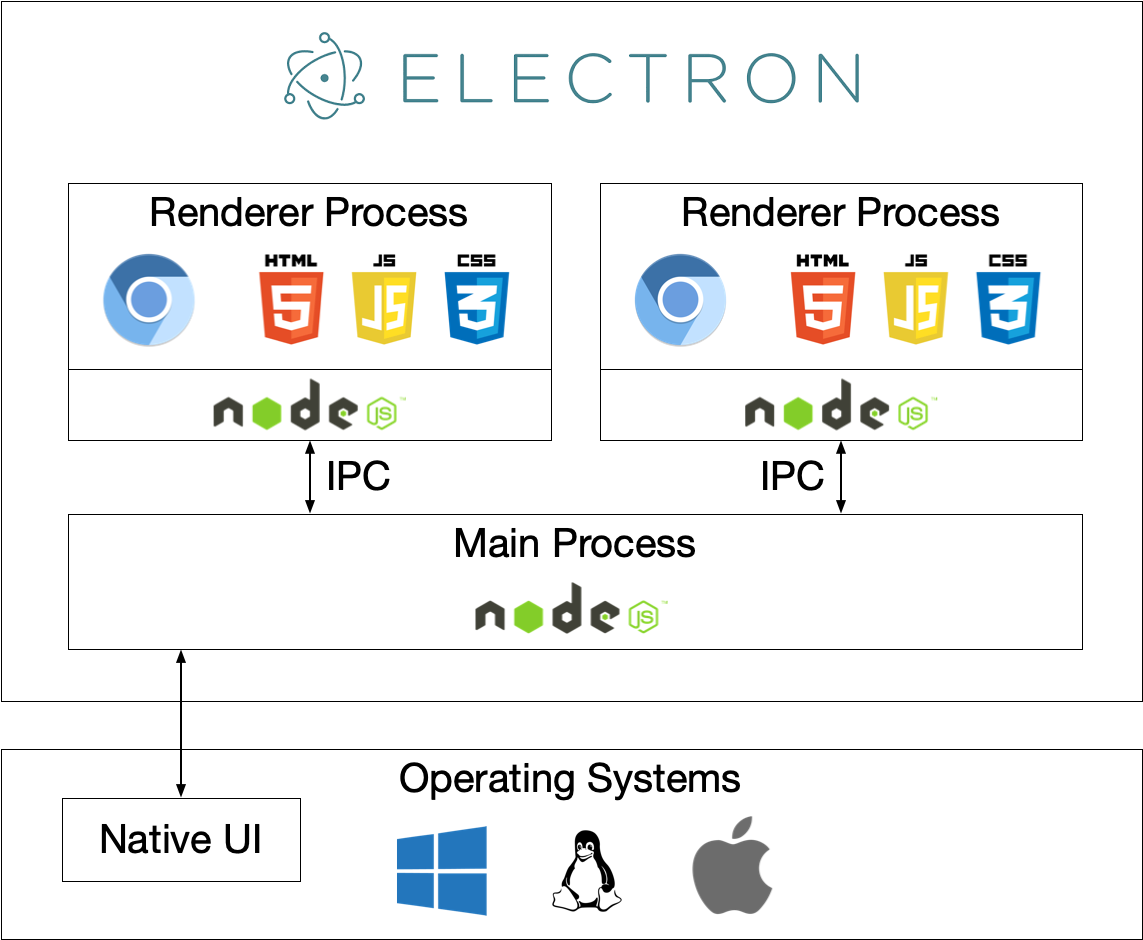
Electronis an open-source framework that wrapsChromium (browser engine) + Node.js (server/system capabilities)into a desktop application shell, allowing you to useHTML/CSS/JSWrite cross-platform desktop applications (Windows, macOS, Linux).
Key points:
- Frontend handles the UI (Renderer process: like browser tabs).
- Main process (Main) handles app lifecycle, windows, and native API calls.
- Both throughIPC (Inter-Process Communication)interaction.
- Can ultimately be packaged into
.exe、.app、.deband other installation files.
Electron was developed and maintained by GitHub, originally created to build the Atom editor.
In short:Electron = Chromium + Node.js + Native APIs
- Chromium: Provides a powerful rendering engine, responsible for displaying the UI.
- Node.js: Provides backend capabilities, with access to the file system, network, etc.
- Native APIs: Provides OS-level features such as menus, notifications, tray, etc.
Why Choose Electron
Electron lets Web developers build desktop apps without learning a new language, greatly lowering the barrier to desktop development.
- easy to learn: Web developers can reuse a large number of frontend skills/components/ecosystem (React/Vue/Angular/TS/CSS).
- Cross-platform: Write once, build for three platforms (though system differences require adjustment).
- Powerful local capabilities: Directly access the file system, processes, and system APIs without writing native language bindings (Node.js is sufficient for the vast majority of scenarios).
- Mature ecosystem: A wealth of ready-made libraries, templates, and packaging tools (Electron Builder / Forge, etc.).
- Suitable for tool-type applications: Editors, communication tools, productivity software, debugging tools, etc.
Electron's design philosophy is "Write Once, Run Everywhere."
Developers only need to write one codebase to generate applications for Windows, macOS, and Linux.
Core advantages:
- Develop desktop apps using familiar Web technology stacks.
- No need to learn platform-specific languages (such as C++, Objective-C, Swift).
- Unified development experience and codebase.
- Rapid iteration and deployment.
application scenarios
Electron is suitable for the following types of desktop application development:
- Development Tools / Editors: Code editors, terminals, debuggers (e.g., VS Code, Postman).
- Instant Messaging/Social: Chat clients (e.g., Discord, Slack).
- Cross-platform Desktop Client: When you need to quickly turn a web product into a desktop version.
- Prototypes and internal tools: Internal company operations tools, data dashboards, admin consoles.
- Apps with high UI/interaction requirements but not extreme performance sensitivity.。
Unsuitable scenarios: projects that are extremely sensitive to CPU/GPU/memory, require the ultimate native experience, or are mobile-first (such as large-scale graphics rendering, ultra-low-latency games).
What Electron Can Do
Electron provides rich desktop capabilities. Here are the main features it supports:
- Open windows, menus, system tray, notifications (system notifications).
- Read/write files, work with local databases (SQLite, LevelDB, etc.).
- Invoke local commands/binaries, start child processes.
- Use native dialogs (open/save files), clipboard, drag-and-drop, global shortcuts.
- Implement auto-update, hot reload, packaging and distribution.
- Load local or remote web pages, supporting modern Web technologies (WebGL, WebRTC, etc.).
- Integrate native modules (C++/Node Native Addons), connecting to hardware or system features.
Core Concepts (Technical Essentials)
Understanding the following core concepts is key to mastering Electron development:
- Main processMain process: Electron's entry point, responsible for creating BrowserWindow, managing the application lifecycle and native APIs. Runs as a single instance (Node.js available).
- Renderer processRenderer process: Each BrowserWindow corresponds to one renderer that runs web pages (Chromium) and does not directly access Node (restricted APIs can be exposed via preload).
- Preload script & contextIsolationPreload: It is recommended to use preload to inject restricted APIs into the renderer, and enable contextIsolation to improve security.
- IPC(ipcMain / ipcRenderer / contextBridge)IPC: Communication mechanism between the main and renderer processes.
- Packaging tool:Electron Builder / Electron Forge / electron-packager wait,used forGenerateInstallation PackageandAutomatic update。
- Auto-updater: Implement automatic app updates (requires server/publish configuration).
Security considerations
Electron has both browser and Node.js capabilities, so security configuration is critical.
Never enable directly in the renderer
nodeIntegration: true, which is off by default to prevent XSS from leading to arbitrary system command execution.
- UsagecontextIsolation + preload + contextBridgeExpose minimal, controlled APIs.
- Strictly validate / sandbox external content (remote URLs).
- Strictly validate inputs such as file paths and shell commands to avoid command injection.
- Use CSP whenever possible, disable eval, and avoid untrusted third-party scripts.
Electron's advantages and limitations
This section provides a comprehensive analysis of Electron from both advantages and limitations, helping you make a reasonable technology choice.
Main advantages
The following are Electron's core strengths compared with other desktop development approaches:
1. Convenience of Cross-platform Development
With Electron, developers can use the same codebase to generate apps for Windows, macOS, and Linux:
Example
// The same code can run on three platforms
const { app, BrowserWindow } = require('electron');
// Create the main window function
function createWindow() {
const win = new BrowserWindow({
width: 800, // Window width (pixels)
height: 600 // Window height (pixels)
});
// Load local HTML file
win.loadFile('index.html');
}
// Create a window after app is ready
app.whenReady().then(createWindow);
Cost savings:
- No need to maintain three codebases.
- Teams don't need to master multiple platform development technologies.
- Unified testing and deployment processes.
- Faster feature iteration.
2. Advantages of the Web Technology Stack
- Rich ecosystem: Millions of packages available on npm.
- Mature framework: Can use modern frontend frameworks such as React, Vue, Angular.
- High Development Efficiency: Hot reload, DevTools, rich debugging tools.
- Abundant talent pool: Huge pool of Web developers, easy to hire.
- Rapid prototyping development: Leverage existing Web components and libraries.
3. Powerful Feature Support
- Full Node.js capabilities (file system, network, processes, etc.).
- Native desktop features (menus, notifications, system tray, etc.).
- Automatic update mechanism.
- Hardware access (camera, USB devices, etc.).
- Offline working capability.
4. Active Community and Ecosystem
- Comprehensive official documentation.
- A large number of open-source projects available for reference.
- Rich third-party tools and libraries.
- Active community support.
Main limitations
Understanding Electron's limitations helps determine whether it's right for your project:
1. Performance overhead
Electron applications need to run Chromium and Node.js simultaneously, which brings additional performance overhead:
- Memory usage: A blank Electron application typically consumes 50-100MB of memory.
- CPU Usage: Rendering engine and JavaScript execution are less efficient compared to native apps.
- Startup time: Longer startup time compared to native apps.
Comparison between native apps and Electron apps:
| Comparison Dimension | Native application | Electron application |
|---|---|---|
| Memory usage | 10-30MB | 80-200MB |
| Startup time | < 1 second | 2-5 seconds |
2. Large Installation Package Size
Every Electron application needs to bundle the full Chromium and Node.js runtime:
- Windows: ~50-70MB (uncompressed).
- macOS: ~60-80MB (uncompressed).
- Linux: ~55-75MB (uncompressed).
This means that even simple apps won't have an installer smaller than 50MB.
3. Security Considerations
Because Electron has both browser and Node.js capabilities, misconfiguration can create security risks:
- XSS attacks could lead to system-level privileges being exploited.
- Context isolation and sandboxing need to be configured carefully.
- Security issues of third-party dependencies.
4. Native Experience Differences
Although native-looking UIs can be simulated, differences remain in some areas:
- Unable to perfectly replicate system native controls.
- Some system-level functions are difficult to implement.
- Platform-specific interaction conventions require extra work.
Trade-off suggestion
The following table helps you determine whether Electron is suitable based on your project requirements:
| Factor | Weight | Description |
|---|---|---|
| Development Efficiency | High | Electron is most efficient if the team has Web experience. |
| Cross-platform requirements | High | When multi-platform support is needed, Electron is a top choice. |
| Performance requirements | Medium | Acceptable for general apps except in extreme performance scenarios. |
| Package size sensitivity | Medium | 50-100MB is acceptable in modern network environments. |
| Security requirements | High | Need to strictly follow security best practices |
Comparison with Other Similar Tools
Electron is not the only option. Here's a comparison of mainstream desktop development approaches:
If you're a frontend/full-stack developer and need toQuickly deliver Web products or tools to the desktop, while directly using system capabilities., Electron is a highly productive, low-barrier choice.
But if you have strict requirements for size, memory, or ultimate native experience, consider Tauri, Flutter, or native frameworks as alternatives.
-
Tauri
- Core: Rust + system built-in WebView (WebView2 / WebKit).
- Advantages: small size, low memory usage, good security, suitable for apps focused on lightness and performance.
- Suitable for: desktop apps that want to use web technologies but need extremely small size or are performance-sensitive.
- Comparison: If you want to quickly reuse the Node.js ecosystem, Electron is more convenient; if you prioritize small size, choose Tauri.
-
NW.js
- Similar origin to Electron (also Chromium + Node), but with a different API style.
- Electron's community and tools are more active.
-
Neutralino
- Extremely lightweight, uses the system WebView, with fewer features than Electron.
- More suitable for simple tools or small desktop apps.
-
Flutter Desktop
- Rendered with Dart/Flutter, with good native performance and high UI consistency.
- Suitable for projects needing unified cross-platform UI/performance, but requires relearning the UI framework (not web technology).
-
React Native for Windows/Mac / .NET MAUI / Qt
- A more native desktop development path, suitable for projects with high requirements for system integration, performance, and native experience.
Selection suggestions:
- Want to quickly turn a Web product into a desktop app, or the team is mainly Web frontend →Electron。
- Want smaller size / lower resource usage →Tauri/Neutralino。
- Pursuing native UI & high performance →Flutter/Native/Qt。
Common Performance and Size Issues
Here are some practical tips for optimizing Electron app performance and size:
- Enable at packagingasarCan merge resources (note native module compatibility).
- Use lazy loading, reduce initial rendering resources, and minimize heavy resources loaded by the main window.
- Avoid heavy CPU-intensive tasks in the renderer; useChild process / worker / native module。
- Usagesingle instance, and adjust hardware acceleration enabling/disabling based on the situation.
- Optimize dependencies: reduce unnecessary npm packages, avoid huge frontend libraries (or use on-demand loading).
Quick start examples
Quickly learn Electron's basic structure through a minimal project.
Project file structure:
my-electron-app/
├─ package.json    # 项目配置与依赖
├─ main.js         # 主进程入口
├─ preload.js      # 预加载脚本(安全暴露 API)
└─ index.html      # 渲染进程界面
package.json(Minimal configuration):
Example
"name": "my-electron-app",
"version": "0.1.0",
"main": "main.js", // Specify the main process entry file
"scripts": {
"start": "electron ." // npm start starts the application
},
"devDependencies": {
"electron": "latest" // Electron as a development dependency
}
}
main.js(Main process):
Example
const { app, BrowserWindow } = require('electron');
const path = require('path');
// Create main window
function createWindow() {
const win = new BrowserWindow({
width: 900,
height: 600,
webPreferences: {
preload: path.join(__dirname, 'preload.js'), // Preload script path
contextIsolation: true, // Enable context isolation (recommended)
nodeIntegration: false // Disable Node integration to improve security
}
});
win.loadFile('index.html');
}
// Create a window after app is ready
app.whenReady().then(createWindow);
// macOS: When all windows are closed, do not quit the application (following macOS conventions).
app.on('window-all-closed', () => {
if (process.platform !== 'darwin') app.quit();
});
preload.js(Controlled API exposure):
Example
const { contextBridge, ipcRenderer } = require('electron');
// Expose a safe API to the renderer process via contextBridge.
// The renderer process can access via window.electronAPI
contextBridge.exposeInMainWorld('electronAPI', {
// Send message to main process (only whitelisted channels allowed)
send: (channel, data) => {
const validChannels = ['ping']; // Whitelist: allowed channels
if (validChannels.includes(channel)) {
ipcRenderer.send(channel, data);
}
},
// Receive messages from main process (only whitelisted channels allowed)
on: (channel, func) => {
const validChannels = ['pong']; // Whitelist: allowed channels
if (validChannels.includes(channel)) {
// Remove the event parameter, only pass business data to the callback
ipcRenderer.on(channel, (event, ...args) => func(...args));
}
}
});
index.html(Renderer process interface):
Example
<html>
<body>
<h1>Hello Electron</h1>
<button id="ping">Ping main process</button>
<script>
// Click the button to send a ping message to the main process
document.getElementById('ping').addEventListener('click', () => {
window.electronAPI.send('ping', { time: Date.now() });
});
// Listen for the pong message replied by the main process
window.electronAPI.on('pong', (msg) => alert('received pong: ' + JSON.stringify(msg)));
</script>
</body>
</html>
Listen for IPC in the main process (add to main.js):
Example
const { ipcMain } = require('electron');
// Listen for ping messages from the renderer process, reply with pong
ipcMain.on('ping', (event, data) => {
console.log('Received ping, data:', data);
event.sender.send('pong', { reply: 'ok', received: data });
});
Run:
# 安装依赖
npm install

# 启动应用
npm start
Packaging and distribution
After development, you need a packaging tool to distribute the app to users.
Comparison of common packaging tools:
| Tools | Features | Applicable scenarios |
|---|---|---|
| Electron Builder | Powerful, supports auto-update and multi-platform installers. | Production projects requiring a complete distribution solution |
| Electron Forge | Developer-friendly, with integrated templates and build processes | Quick start for new projects |
| electron-packager | Only packages, does not create an installer. | Simple packaging requirements |
Common packaging steps:
- Configuration
package.json's build field (or use each tool's config). - Use CI/CD to build for different platforms (Windows requires packaging in a Windows environment or using a cross-compile service).
- Deploy an update server or use GitHub Releases + electron-updater.
Practical Advice and Best Practices Checklist
The following suggestions come from real project experience and can help you avoid common pitfalls:
- At the start: using TypeScript + packaging scaffolding (Forge/Builder) saves future maintenance costs.
- Security: Enforced
contextIsolation: true, minimize the API exposed to the renderer. - Architecture: put business logic in the renderer (UI) or backend services, and wrap system/permission operations through the main process.
- Upgrades: Use electron-updater for automatic updates, but pay attention to signing and release strategies (macOS requires signing, and Windows also needs code signing).
- Testing: test on real machines across multiple platforms (especially file permissions, paths, environment variables).
- Resources: Regularly check Chromium and Electron versions, and pay attention to security patches (Chromium vulnerabilities can affect your application).
When Not to Use Electron
The following scenarios are not recommended for Electron:
- You need extremely low memory usage or a very small installer (e.g., embedded devices or minimalist tools).
- Need ultimate native UI and native performance (e.g., AAA games or complex CAD).
- If the team is unfamiliar with web technologies but familiar with native development, a native framework may be more suitable.
Recommended learning paths and resources
By following the roadmap below step by step, you can systematically master Electron development:
- Learn basic Node.js and frontend (HTML/CSS/JS)/frameworks (React/Vue).
- Read the official Electron documentation (Main/Renderer/Preload/IPC/Security Guide).
- Build a minimal example (the example above) and experiment with IPC, file operations, and window control.
- Learn and use packaging tools (Electron Builder / Forge).
- Read tutorials on security best practices, automatic updates, and code signing.
- Refer to mature open-source Electron projects (such as VS Code's source code snippets) to learn architecture.